
107 lines
2.9 KiB
Markdown
107 lines
2.9 KiB
Markdown
# Slow Bongo
|
|
|
|
|
|
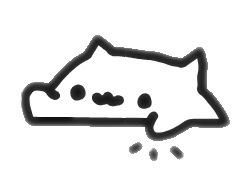
A bongo cat that sits in your bar and slaps when you type. This is very early days, there will be bugs.
|
|
|
|
## Features
|
|
|
|
- **Bar Widget**: Compact widget that fits seamlessly in your Noctalia bar
|
|
- **Keyboard Reactive**: Cat taps its paws in alternation when you type
|
|
- **Audio Reactive**: Optional rave mode and tappy mode that react to music
|
|
- **Easy pause**: Can quickly pause and un-pause reactivity with a single left click.
|
|
- **Customizable Appearance**: Choose from multiple color schemes and adjust size
|
|
- **Font-Based Animation**: Uses a bongo cat font for easy rendering
|
|
- **Bar Widget**: Compact widget that fits seamlessly in your Noctalia bar
|
|
|
|
## Installation
|
|
|
|
1. Navigate to the Noctalia settings plugins section.
|
|
|
|
2. Enter the sources sub-menu.
|
|
|
|
3. Add Slow Bongo as a custom repository.
|
|
```bash
|
|
https://github.com/tuibird/slowbongo.git
|
|
```
|
|
|
|
4. Open the Noctalia plugins store and enable **Slow Bongo**.
|
|
|
|
## Configuration
|
|
|
|
The plugin offers several customization options available in the settings panel:
|
|
|
|
### Input Devices
|
|
|
|
The plugin automatically detects keyboard input devices on first run. You can manually select which input devices to monitor from the settings panel.
|
|
|
|
### Colors
|
|
|
|
The colours are all pulled from your current Noctalia colourscheme.
|
|
|
|
### Rave Mode
|
|
|
|
When enabled, the cat changes colors to the beat when music is playing.
|
|
|
|
### Tappy Mode
|
|
|
|
When enabled, the cat taps along to the beat when music is playing instead of only reacting to keyboard input.
|
|
|
|
### Size and Position
|
|
|
|
- **Cat Size**: Scale the cat from 50% to 150% of default size
|
|
- **Vertical Position**: Fine-tune the cat's vertical alignment in the bar
|
|
|
|
## Requirements
|
|
|
|
### Essential
|
|
|
|
- **evtest**: Required for keyboard input detection
|
|
```bash
|
|
# Fedora/RHEL
|
|
sudo dnf install evtest
|
|
|
|
# Ubuntu/Debian
|
|
sudo apt install evtest
|
|
|
|
# Arch
|
|
sudo pacman -S evtest
|
|
```
|
|
|
|
- **Input group membership**: Your user must be in the `input` group to read keyboard events
|
|
```bash
|
|
sudo usermod -a -G input $USER
|
|
```
|
|
Restart for the group change to take effect.
|
|
|
|
## Troubleshooting
|
|
|
|
### Cat not responding to keyboard input
|
|
|
|
1. Check that `evtest` is installed:
|
|
```bash
|
|
which evtest
|
|
```
|
|
|
|
2. Verify you're in the `input` group:
|
|
```bash
|
|
id -nG | grep input
|
|
```
|
|
|
|
3. Make sure at least one input device is selected in the settings panel.
|
|
|
|
## Technical Details
|
|
|
|
- Uses `evtest` to monitor keyboard events from `/dev/input/event*` devices
|
|
- Integrates with Noctalia's SpectrumService for audio visualization
|
|
- Custom font file (`bongocatfont.woff`) contains the cat animations
|
|
- Alternates between left (1) and right (2) paw animations, returning to idle (0) after configurable timeout
|
|
|
|
## License
|
|
|
|
MIT
|
|
|
|
## Credits
|
|
|
|
- Thank you to [Kitgore](https://github.com/kitgore) for the inital bongo cat font
|
|
- Noctalia plugins for the amazing guides/examples
|